
Rebalance the mix. Keep every ride.
A Cubase plugin that gives you independent trim faders, VCA-style group control and insert-point metering in one shared console. Adjust the overall balance without rewriting channel-fader automation — on your Mac, or from your phone or tablet.Independent trim, VCA-style groups and insert-point metering for Cubase. Rebalance your mix without rewriting fader automation.
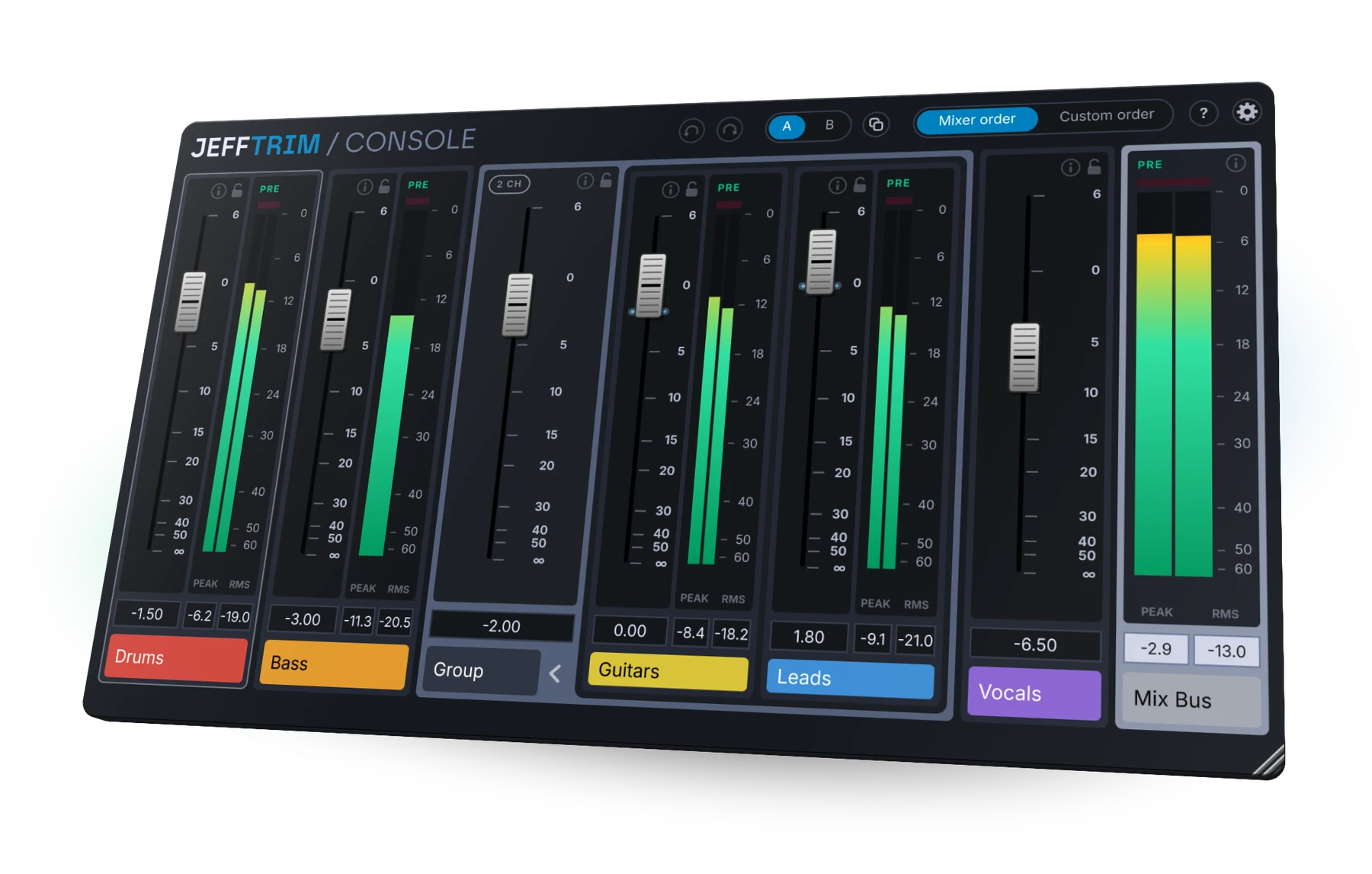

When the mix is right, but the overall balance needs another move.
You've already written the automation and the rides feel right. Now a bus needs to come down a decibel, or a whole family of buses needs a small adjustment, without shifting the Cubase channel faders or disturbing that automation.
Cubase can do this with insert gain plug-ins, and SuperVision can measure at chosen insert points. But once several buses are involved, you're managing separate plug-in windows instead of one clear bank of faders and meters.
Those controls come together in one shared console, with precise trims, group masters and metering where you need it.
Keep the automation. Change the balance.
Independent trim. Existing automation untouched.
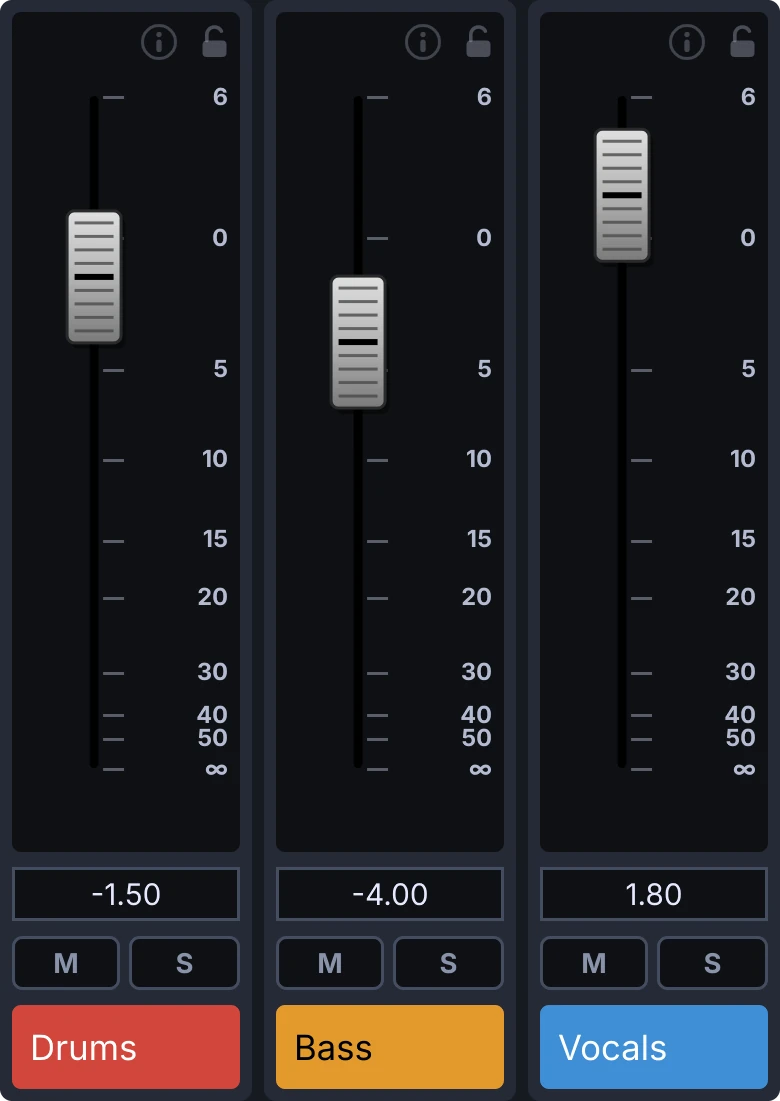
A separate gain move on any channel or bus. The channel fader and its automation stay exactly where they are.
VCA-style groups, without moving the members.
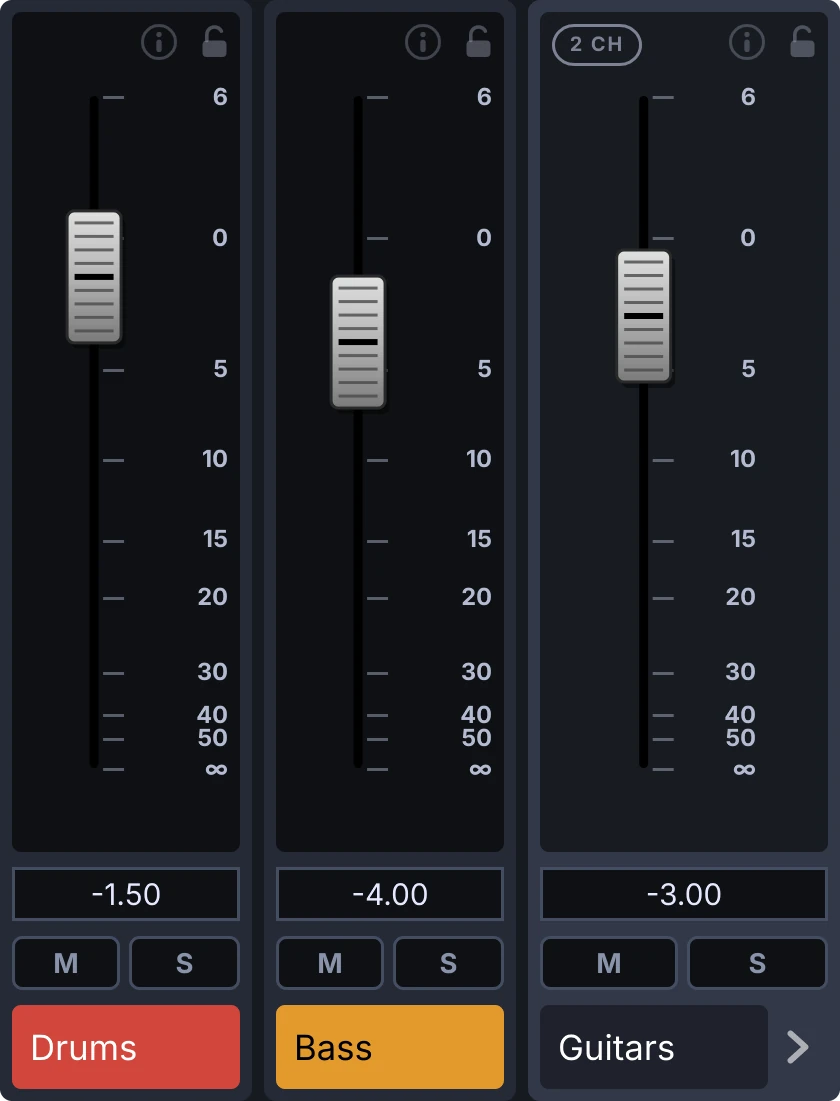
Give related trims a group master and move them together, while each member keeps its own trim value.
Meter at the point you choose.
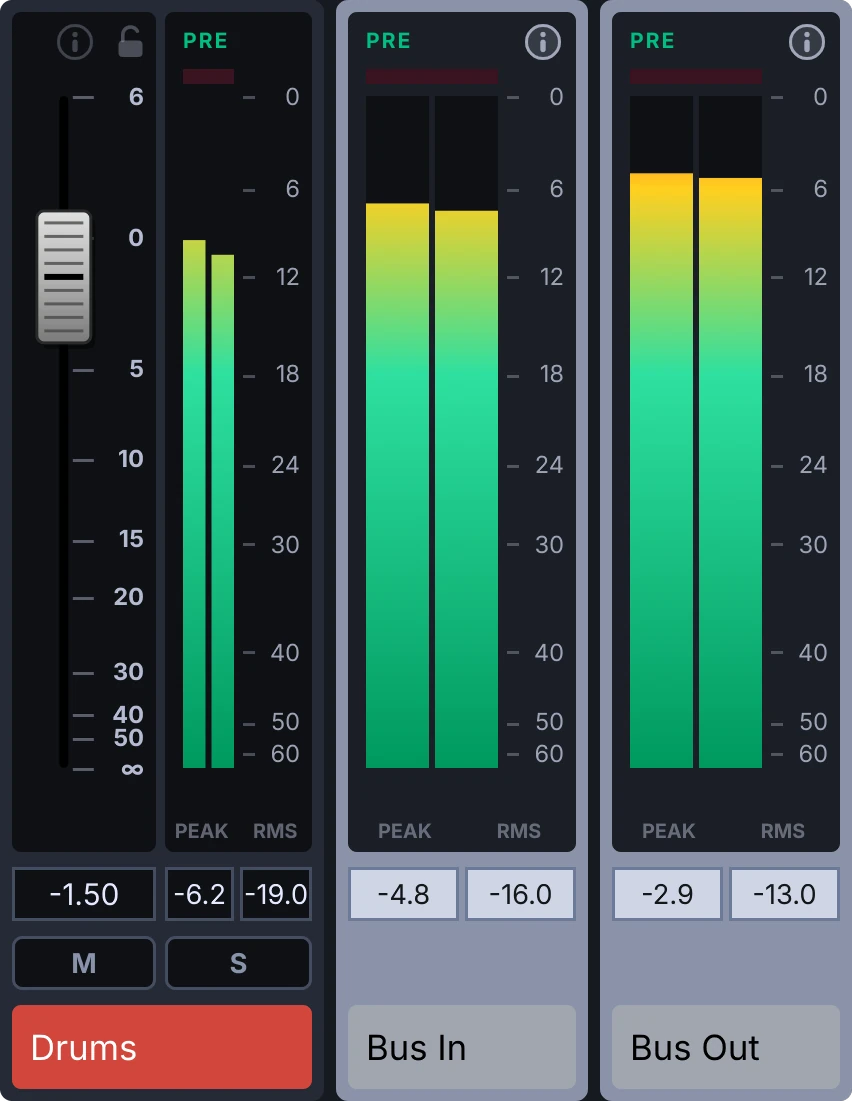
Peak and RMS at the insert position: after processing, before the channel fader or on either side of a compressor.
Meet the pair.
Two plug-ins with one job each. Use either on its own, or both on the same track. The shared console brings them together.
 Trim fader
A trim fader that looks and moves like a Cubase fader. Every instance shows up in one shared console.
 Peak + RMS meter

A peak and RMS meter for any insert position. Open it on its own for a single meter; the shared JeffTrim console also shows its strip.
A working console, not a collection of windows.
See your trims and meters together, follow Cubase's MixConsole order or arrange strips yourself. Select multiple faders for relative moves, lock settled levels, compare A/B balances and undo changes.
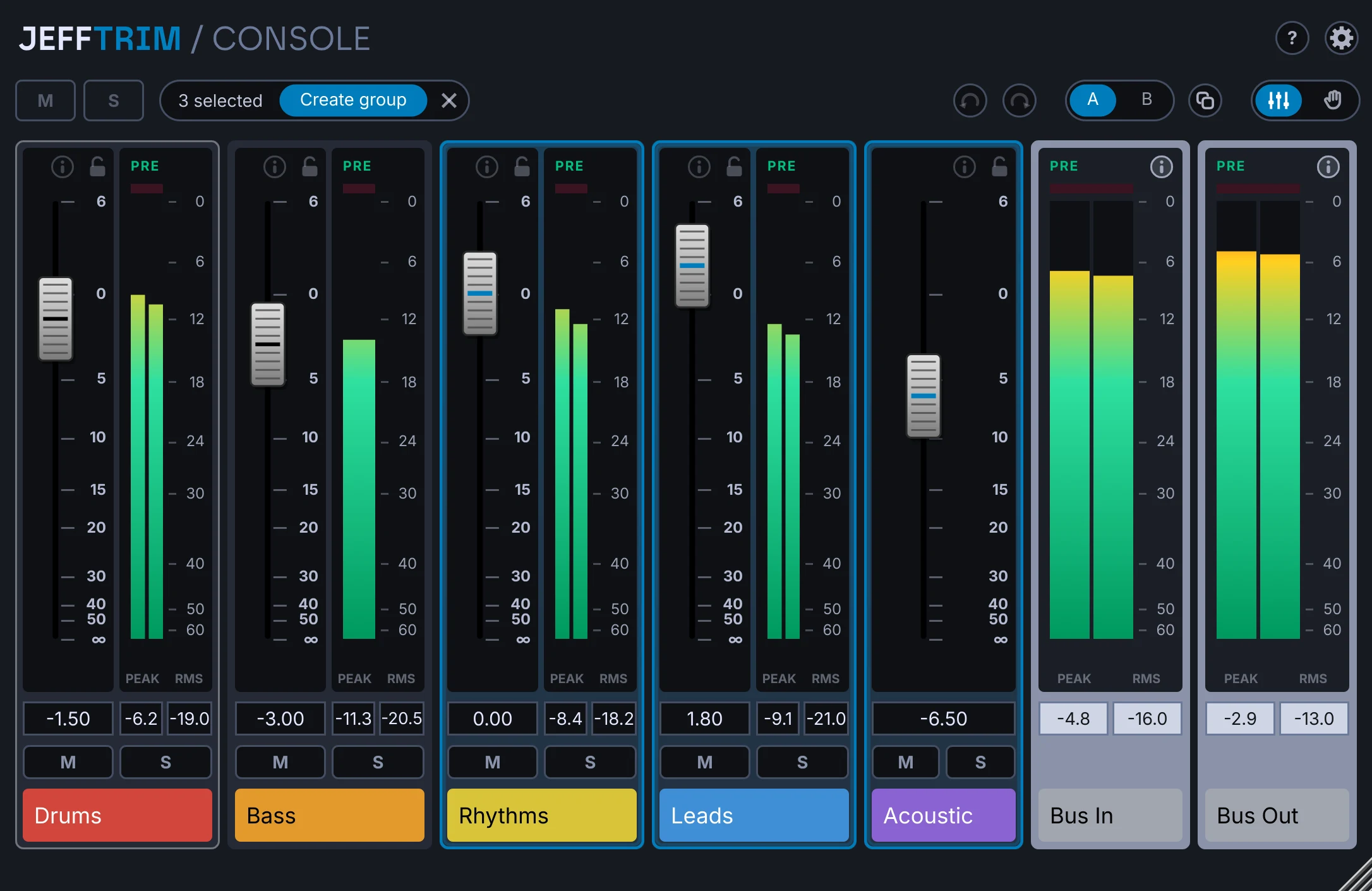
- Feels like Cubase. Same scale and travel as the MixConsole fader, smoothed over 20 ms so moves never click or zipper.
- Exact when you need it. Shift-drag for fine moves, scroll to nudge, or double-click the dB box and type −1.5.
- Follows your session. Strips take each track's name and colour, in mixer order or your own drag-and-drop layout.
- Saved, not automated. Gains, names and order live in the Cubase project, separate from fader automation.
VCA-style groups, without moving the members.
Give related trims their own group master — guitars, vocals, drums or any combination you choose. Move the master to change their effective gain together while each member keeps its individual trim value.
- Quick to set up. Select a few strips and press Cmd+G to make a group.
- Move strips between groups. JeffTrim offers to compensate a member's trim so its level holds, and warns you when that would need more than the fader's +6 dB.
- Close a group to a single fader to save space, and open it again with one click.
Meter at the point you choose.
JeffTrim Meter reads peak and RMS at its insert position. Check the level after processing, before the channel fader or on either side of a compressor. Open a meter on its own, or see it alongside your trims in the shared console.
- Sample peak with a 24 dB/s fallback, matching Cubase's default.
- RMS over 300 ms, updated about six times a second, so it's easy to read.
- Peak hold and a clip LED that lights above 0 dBFS. Click PEAK to reset.
- PRE / POST tag tells you which side of the channel fader the meter sits.
Mute and solo, on JeffTrim's terms.
Audition the channels and buses covered by JeffTrim without operating Cubase's own Mute or Solo controls. JeffTrim's independent Mute/Solo acts at its insert position, so audio paths without a JeffTrim instance aren't controlled by it. See the optional bus-console setup below.
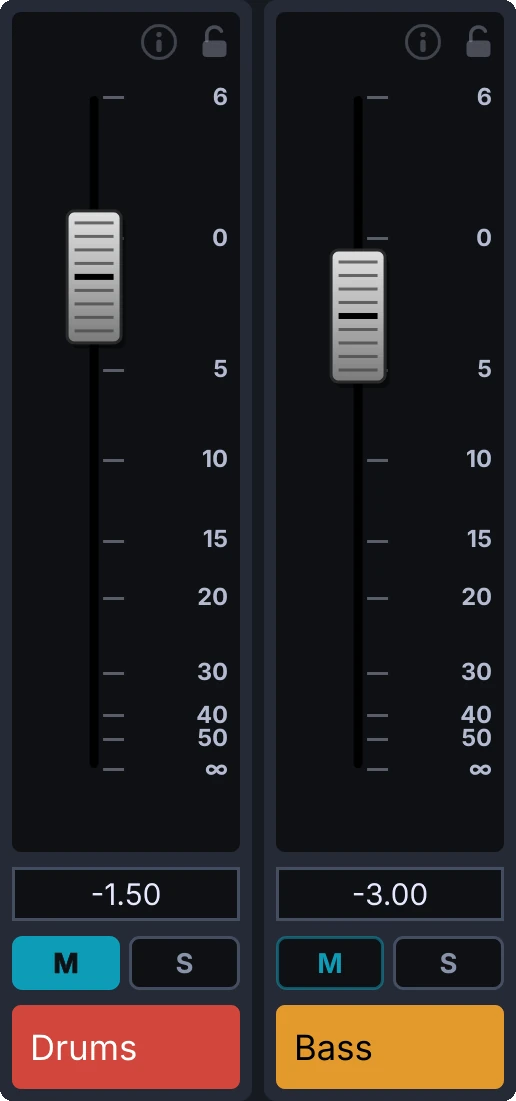
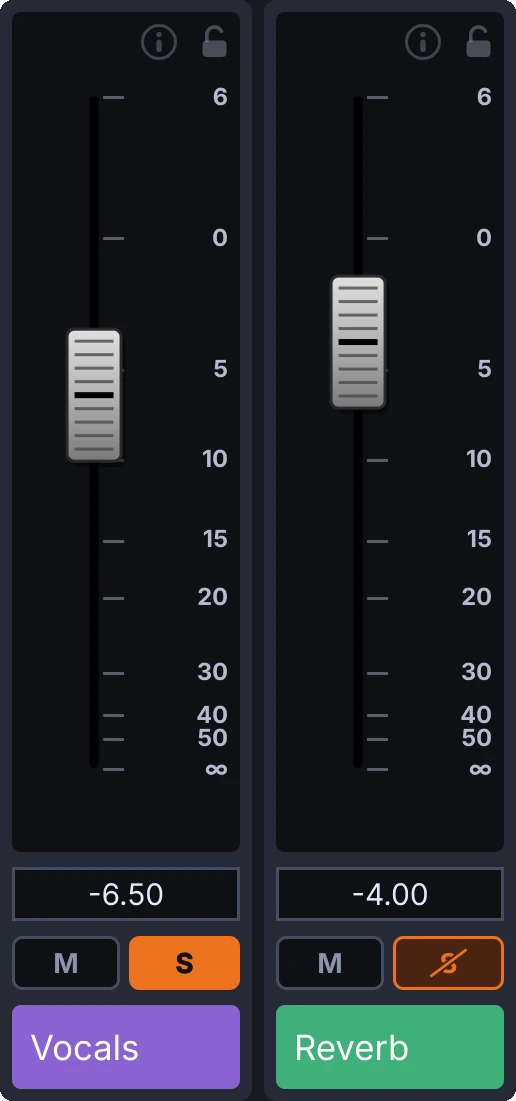
- MS Mute in teal, solo in orange. Solos add up, and Alt-click sets solo safe on your reverb returns.
- Lock a fader and it ignores drags, the wheel, typing, reset and A/B.
- A | B stores two complete trim balances. Copy one into the other and compare with a click.
- Undo and redo every gesture, rename, group or lock. Up to 200 steps.
and unmute
and solo safe

Your console on another screen.
JeffTrim Remote gives you the same controls in a browser or Android app on your local Wi-Fi. Faders, groups, meters and controls stay synchronised with the console on your Mac. No cloud account or internet connection required.
- Live, both ways. Move a fader on the phone and the console follows, and the other way round. Meters update about 20 times a second.
- Everything's there. Groups, ghost markers, lock, mute, solo, A/B, undo and a keypad for exact values.
- Always on. Starts with the first JeffTrim in the project. Nothing to switch on.
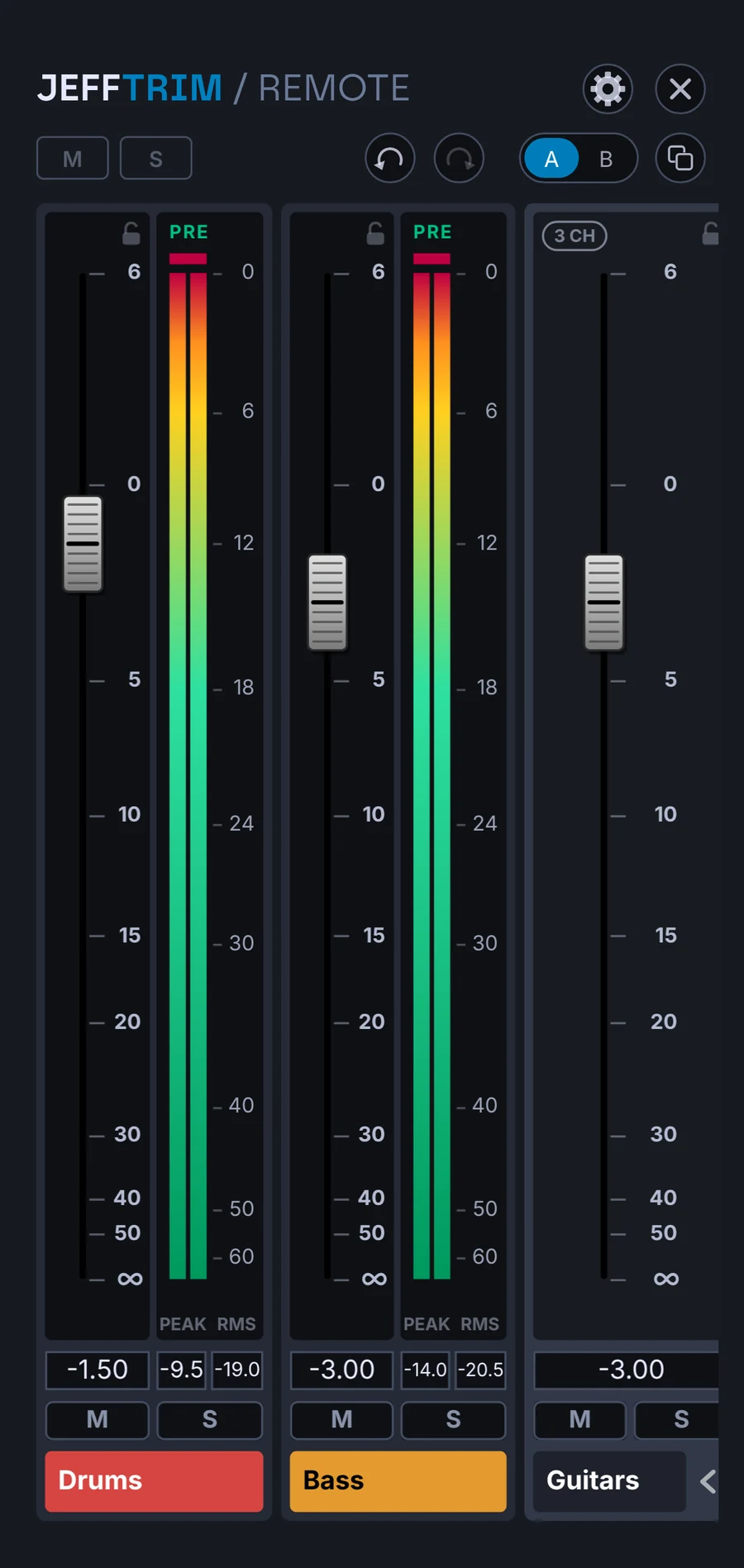
Turn the phone for the whole console.
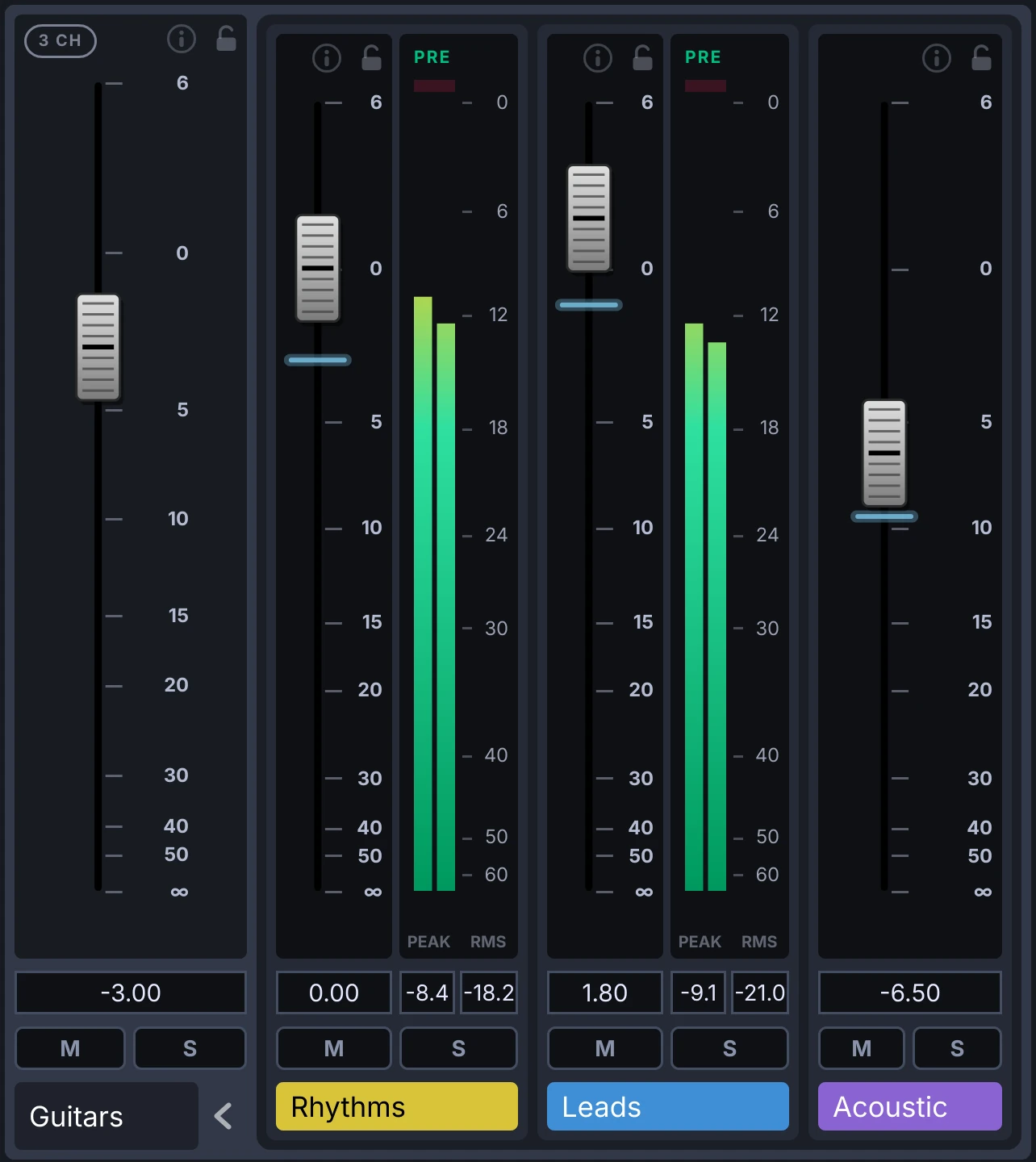
Landscape fits more strips side by side, with the controls in a slim rail on the left. Groups work just as they do on the Mac: tap › beside a group's name to open it in place, adjust the group fader or any member, then tap ‹ to fold it back to a single fader.
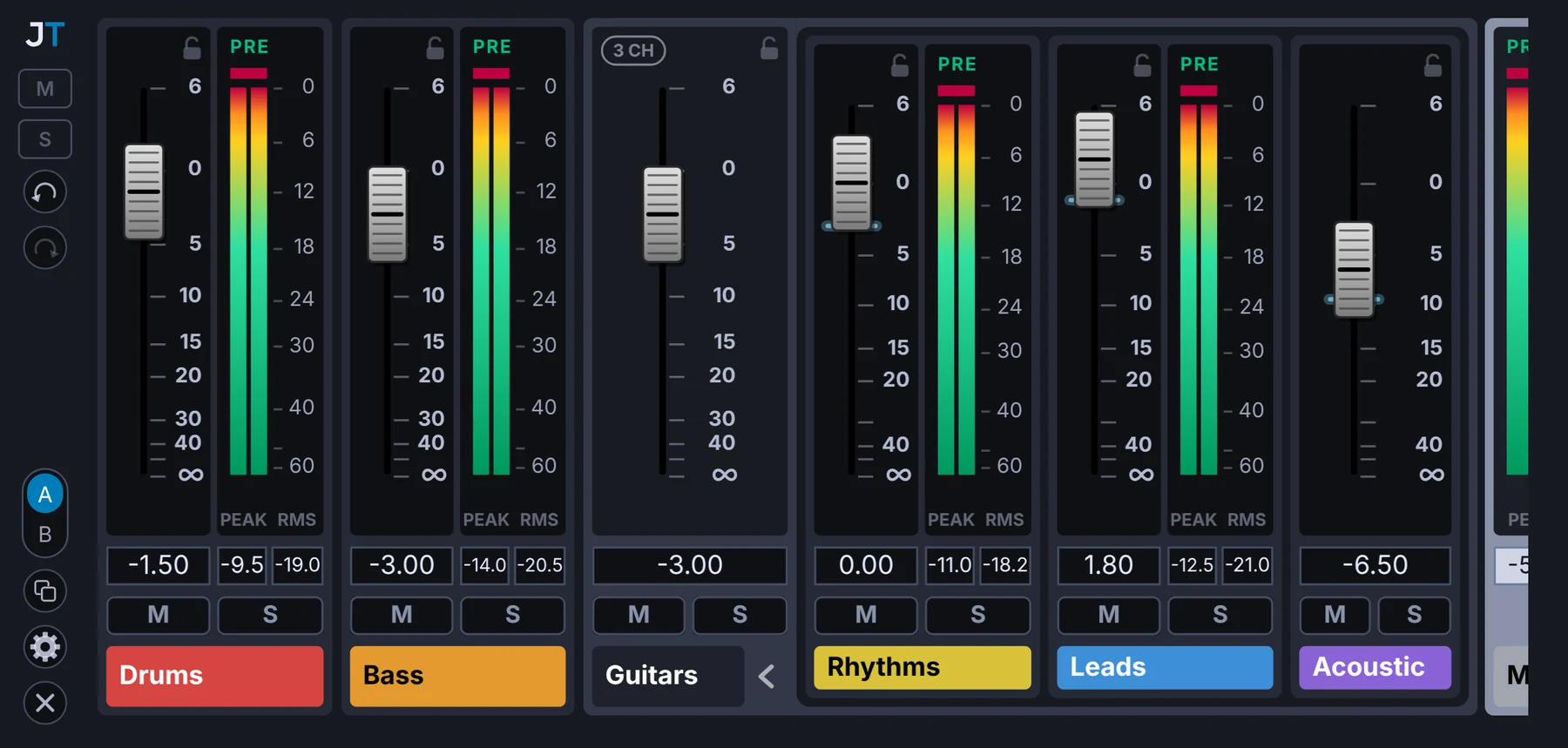
- Groups in place. Open and close a group without leaving the console view. The 3 CH tag shows how many members it holds.
- Controls in the rail. Unmute all, clear solo, undo, redo, A/B, copy and settings sit on the left, out of the faders' way.
One gain stage per insert. One console to control them.
Each JeffTrim instance applies gain at the point where you insert it in Cubase. The shared console is the control surface for those instances; group masters provide an additional VCA-style offset without carrying audio themselves.
For a common bus-balancing setup, place JeffTrim near the end of the pre-fader insert chain, after the processing you want to leave unaffected by trim changes. A JeffTrim Meter placed after JeffTrim then shows the resulting level; one placed before it shows the level entering the trim.
Insert position also determines send behaviour. When JeffTrim sits upstream of a channel's send taps, changes affect the signal feeding those sends as well as its output. It is independent of the fader automation, not downstream of the fader in the signal path.
Processing → JeffTrim → optional JeffTrim Meter → fader and sends.
A simplified, typical pre-fader arrangement,
not every possible Cubase routing.
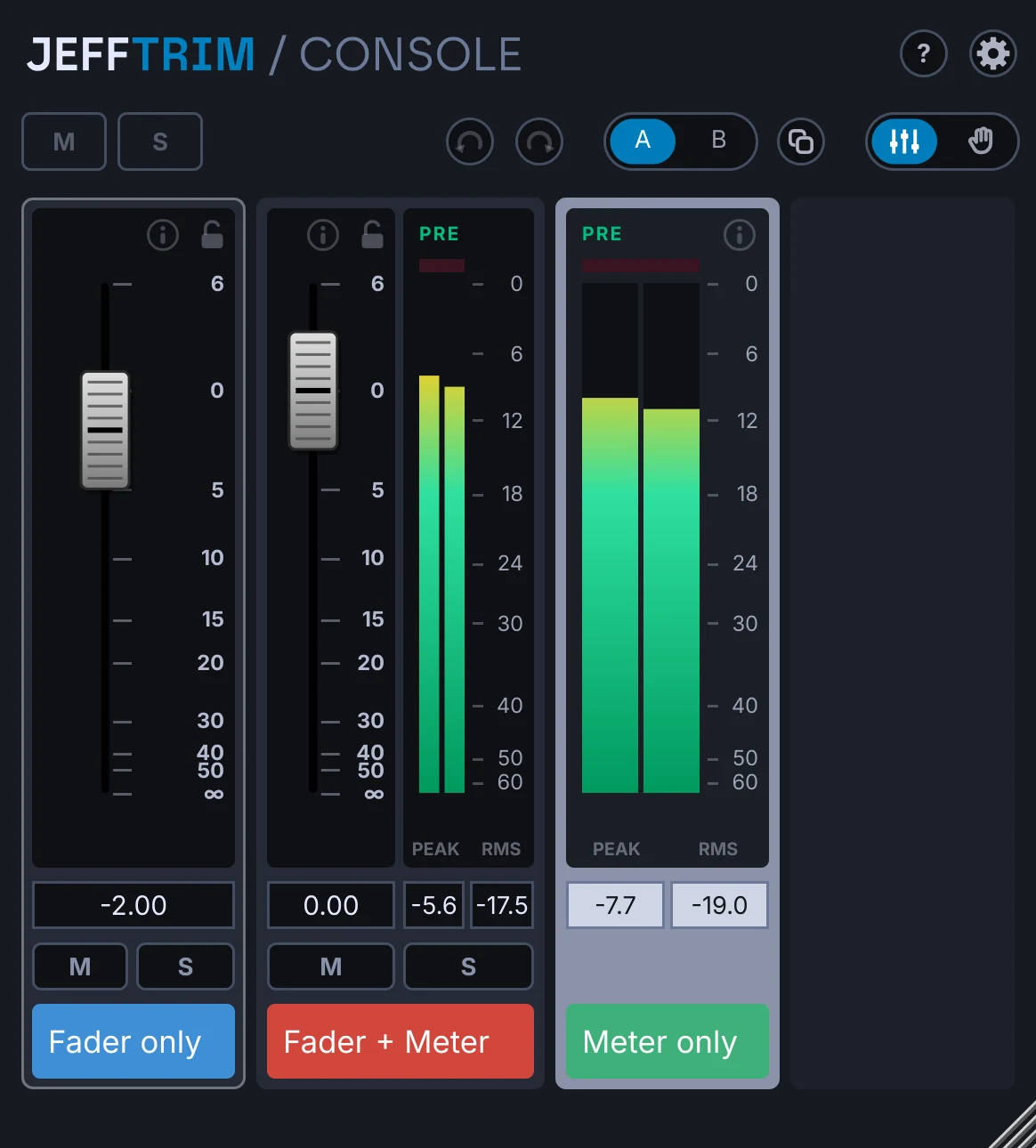
How strips combine.
The console builds each strip from what's on the track. There's nothing to set up.
- Fader only. JeffTrim on a track with no meter.
- Fader + Meter. JeffTrim and JeffTrim Meter on the same track join as one wider strip.
- Meter only. JeffTrim Meter on its own gets a silver strip, so it reads as "measure, don't touch".
Built for the moves you make every mix.
The bass bus is 1 dB hot. The rides are perfect.
Pull the Bass JeffTrim down by a decibel. Your automation stays exactly where it is, and sends tapped after JeffTrim follow the change.
See what goes in, and what comes out.
Put a meter either side of the mix-bus compressor and name them Bus In and Bus Out. Make level decisions instead of guessing.
Make JeffTrim your bus-control surface — if that suits your mix.
Put JeffTrim on your main buses and relevant effects returns to control them together from one compact console. If all the audio paths you want to audition pass through JeffTrim instances, its independent Mute and Solo controls can operate across that part of your mix.
Two focused plug-ins. One shared console.
JeffTrim and JeffTrim Meter work on their own or together, on mono and stereo tracks, with nothing to set up.
| Format | VST3 |
|---|---|
| Platform | macOS, Apple Silicon |
| Host | Cubase (tested on 16) |
| Plug-ins | JeffTrim · JeffTrim Meter |
| Channels | Mono, stereo |
| Added latency | None (0 ms) |
| Fader range | +6 dB to −∞, 20 ms gain smoothing |
| Metering | Sample peak, 24 dB/s fallback · RMS, 300 ms · 0 to −60 dBFS |
| Trim groups | One level, up to +6 dB |
| UI size | 75–150%, resizable window |
| Mute / Solo | Independent of Cubase's own; covers audio paths through JeffTrim |
| Remote | Optional, over local Wi-Fi · Android 8+ app or any browser |
| Undo history | 200 steps per session |
Questions worth asking.
Does JeffTrim change my Cubase automation?
No. Its trim controls are independent of the channel fader and existing channel-fader automation. The gain change still happens at the insert position you choose.
Is JeffTrim a replacement for Cubase's MixConsole?
No. It's an additional control surface for independent trims, VCA-style groups and insert-point metering, with optional independent Mute and Solo across covered audio paths.
Does JeffTrim Meter work on its own?
Yes. Open an individual JeffTrim Meter instance for a standalone meter window; its reading can also appear in the shared JeffTrim console.
Will JeffTrim's Solo mute every track?
Only audio paths passing through JeffTrim instances are covered. Cubase's own Mute/Solo controls remain separate and continue to work normally.
Does moving a strip between groups always preserve its level?
No. JeffTrim can compensate automatically when the necessary adjustment fits within the available trim range. Otherwise it warns you and lets you choose whether to proceed with a level change.
Do I need the Android app?
No. The remote also works in a browser on the same local network. Audio processing remains on the Mac inside Cubase.
Trim the whole mix from one window.
Want JeffTrim in your sessions?
Get in touch to hear about availability, or to try the beta.